Google Drive
Configure Google Cloud
-
Select a project or create a new one:

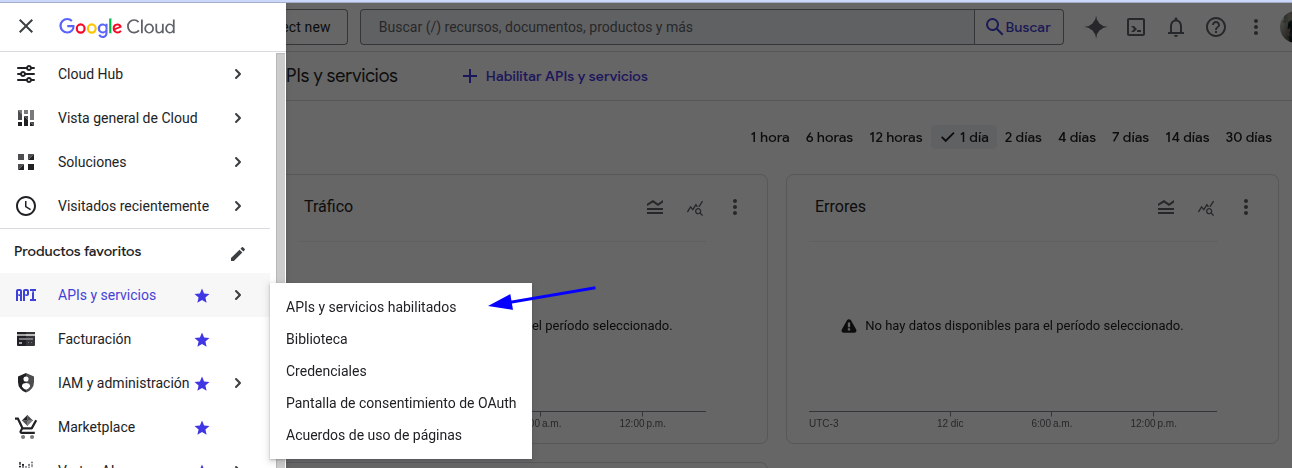
- Go to Enabled APIs & services.
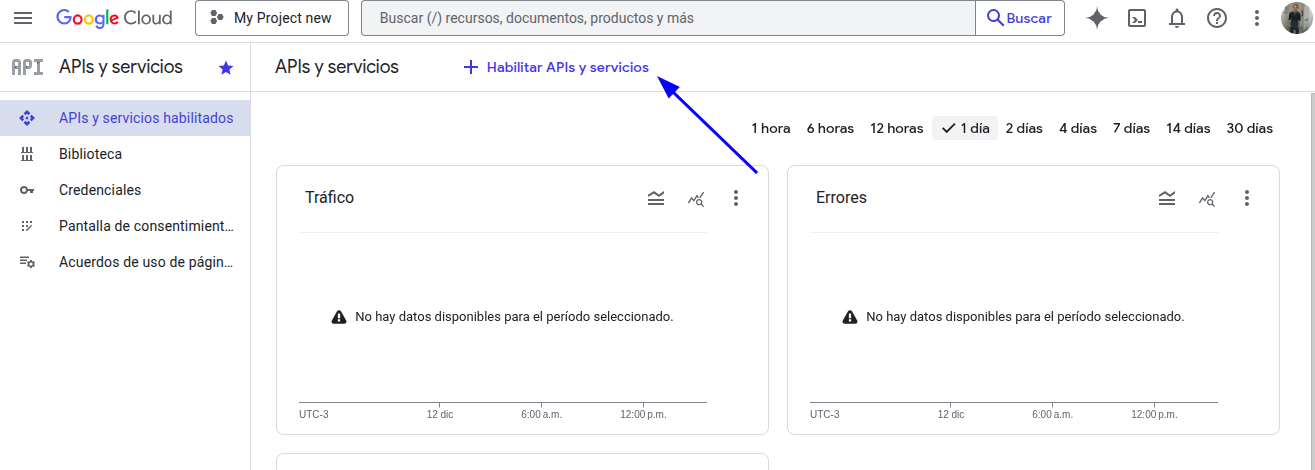
- Go to Enable APIs and services.
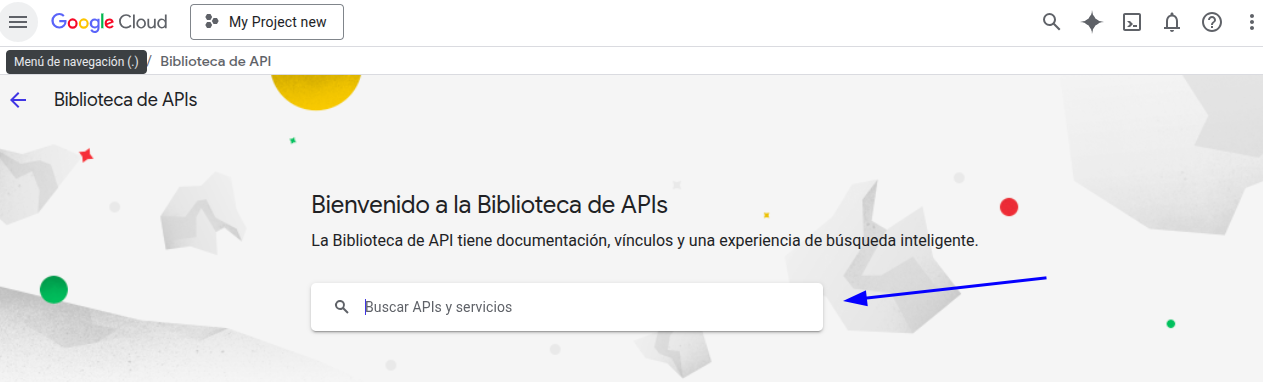
- Enter google drive in the search bar and press Enter:
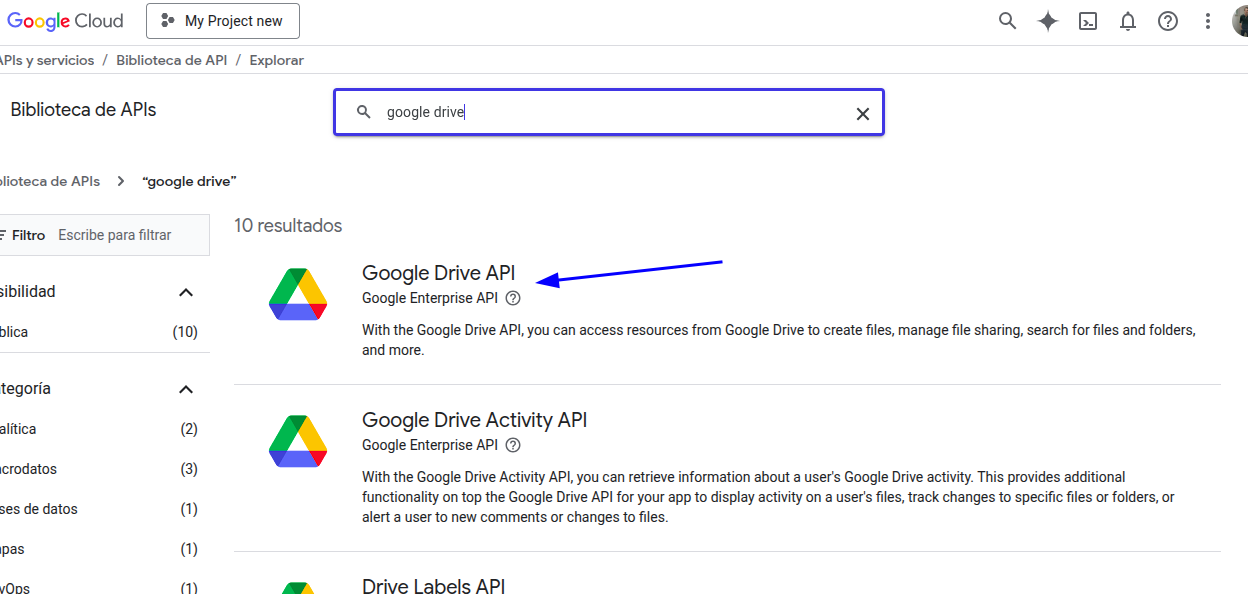
- Click Google Drive API:
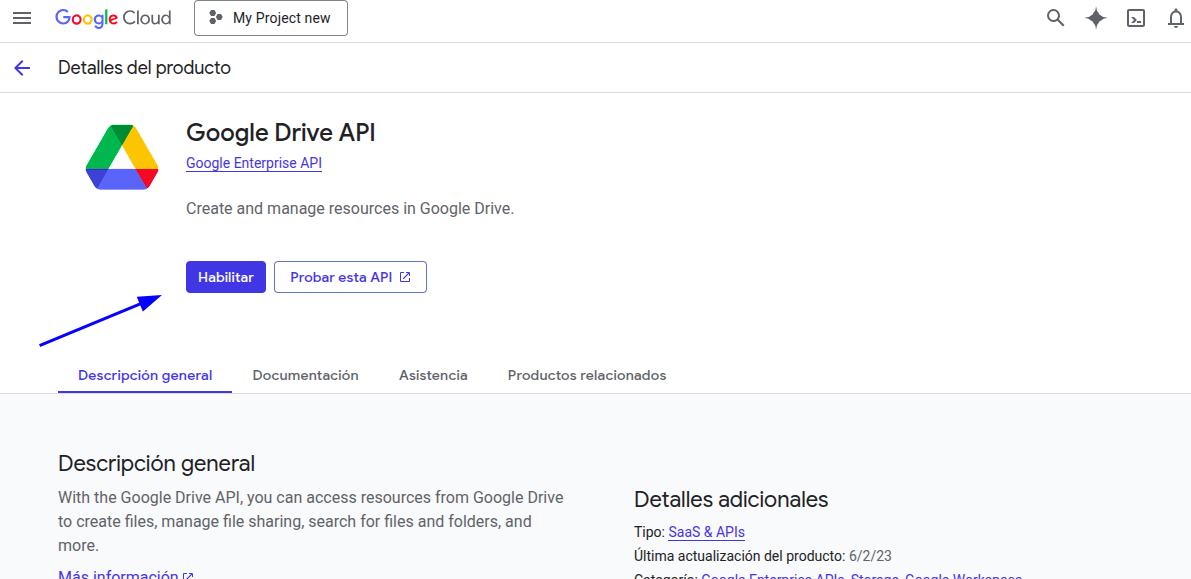
- Click the Enable button:
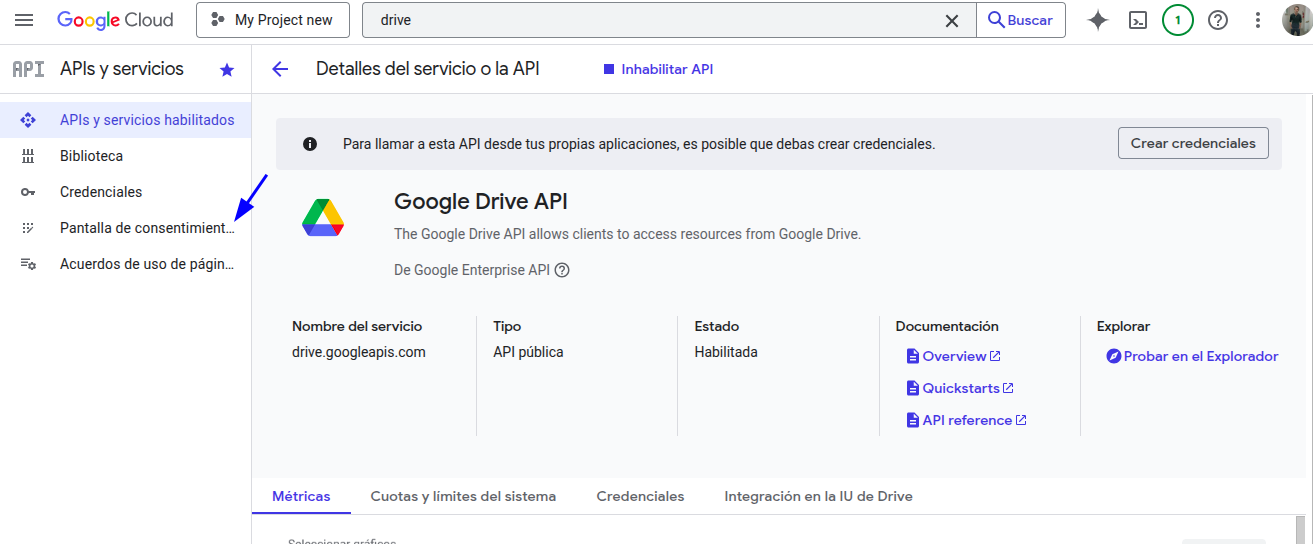
- You should be redirected to the following screen. Go to Audience:
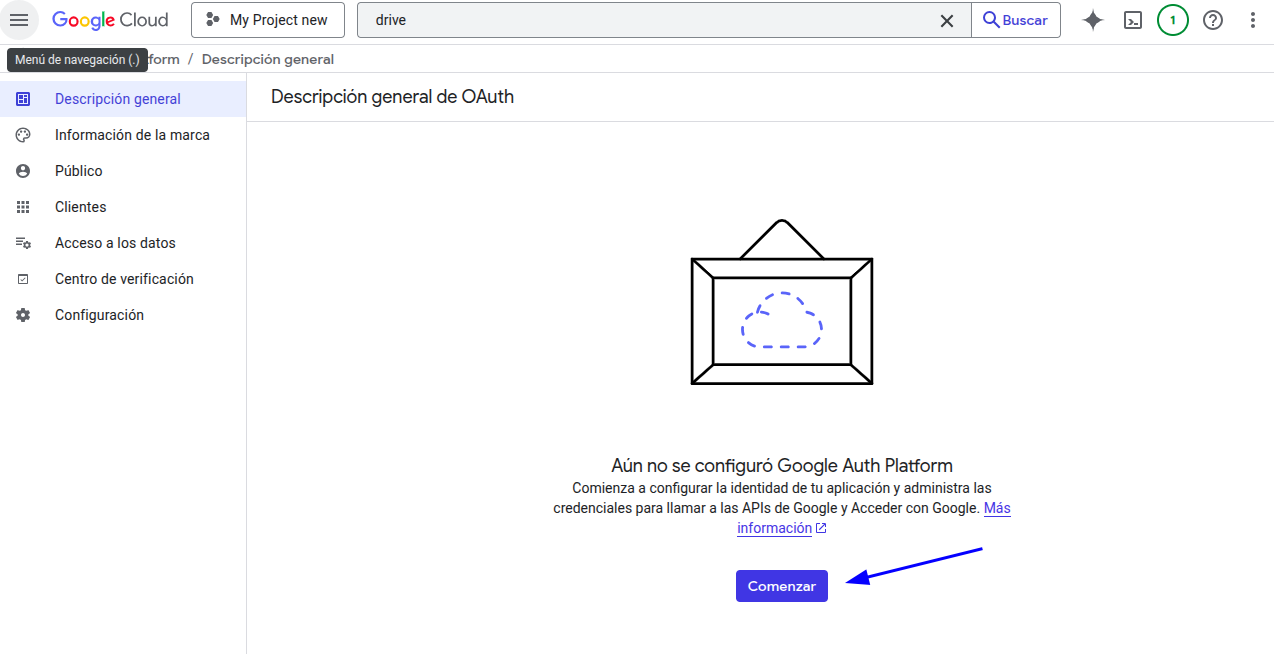
- If the following screen appears, click Get started.
-
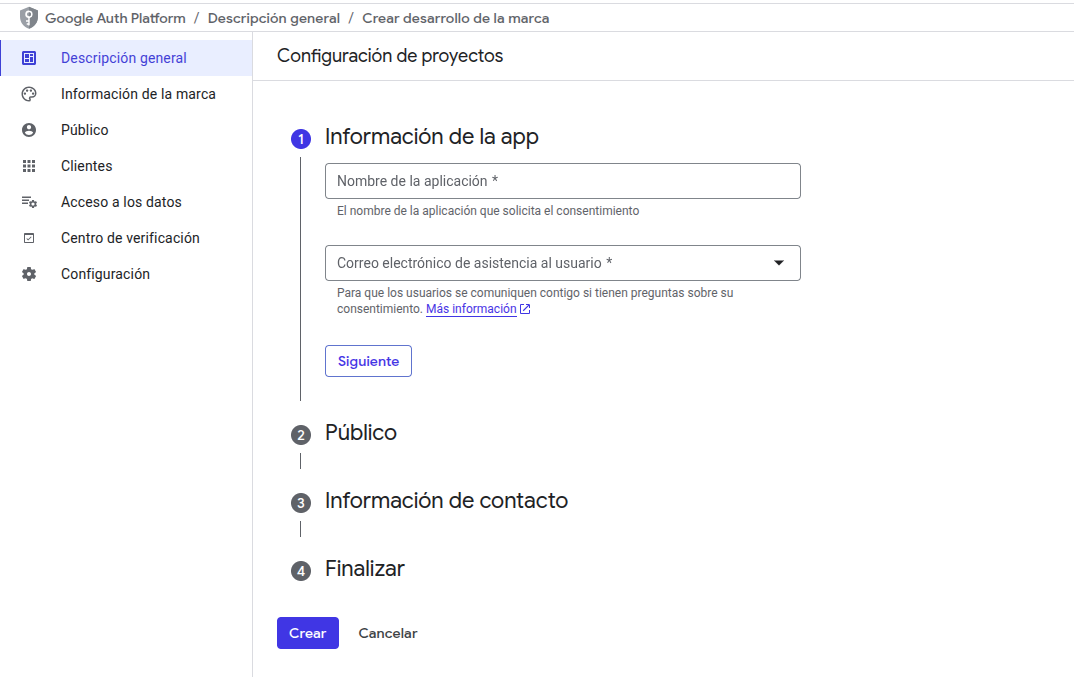
Complete the app information:
App information:
- App name: You can enter Gredit.
- Email: You can enter your email address.
Click Next.
-
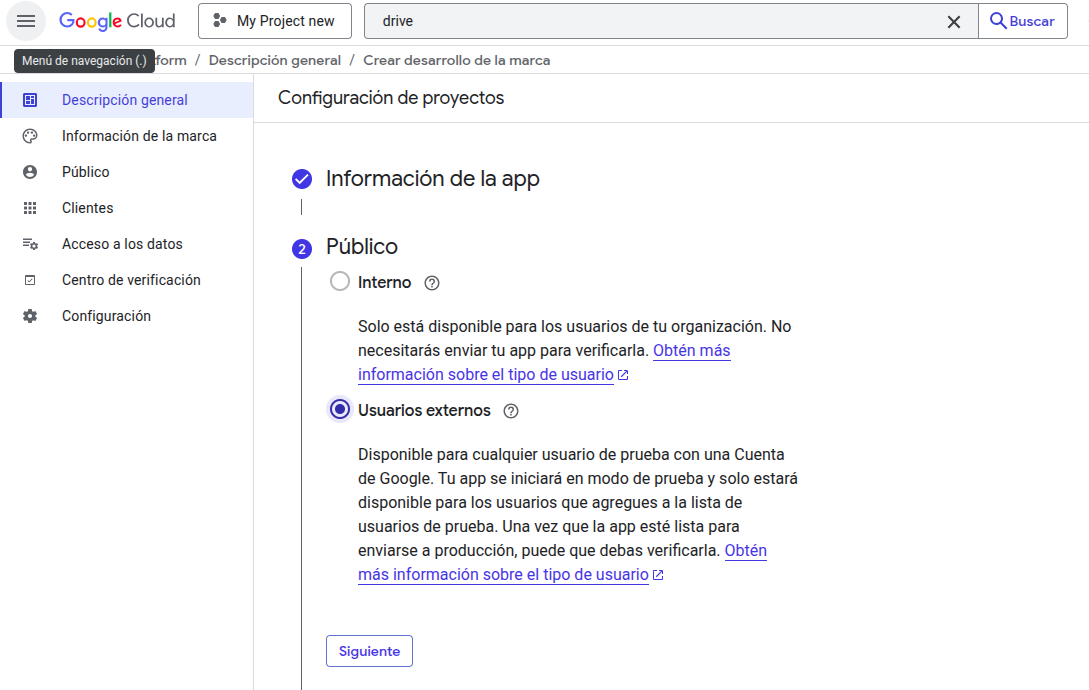
Audience: Select External users.
Click Next.
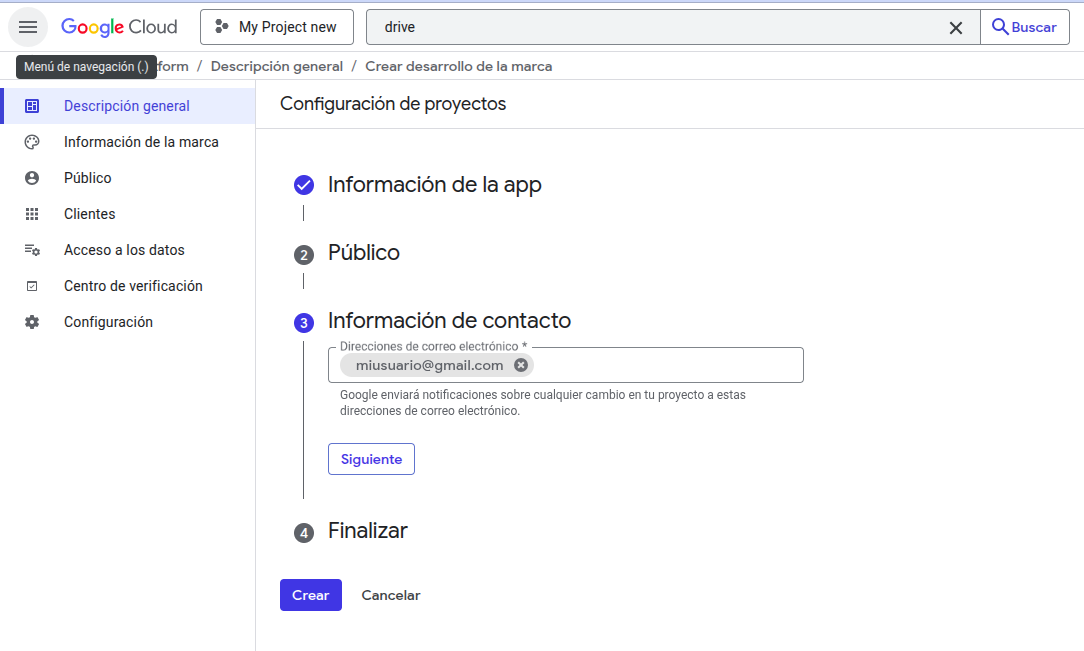
- Contact information: You can enter your email address.
-
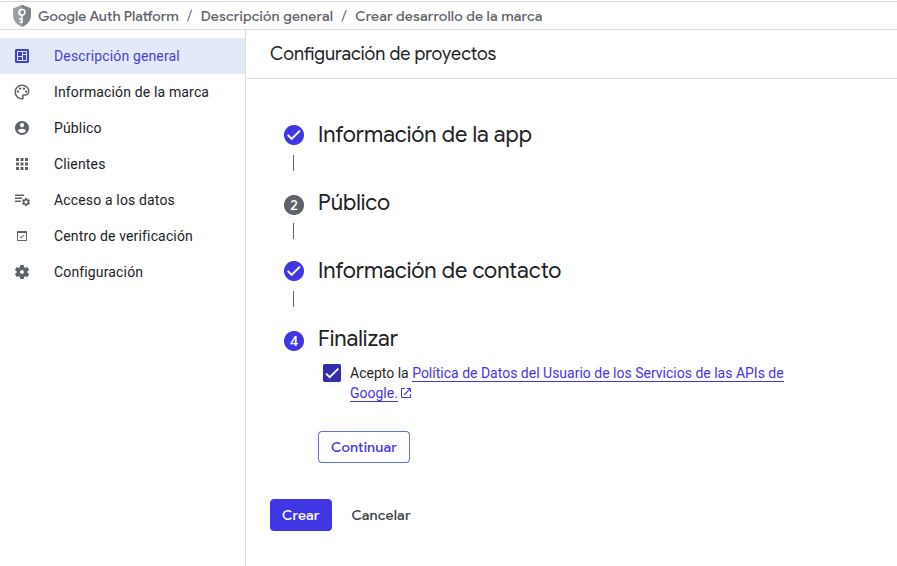
Finish: Accept the Data Policy.
Then click Create.
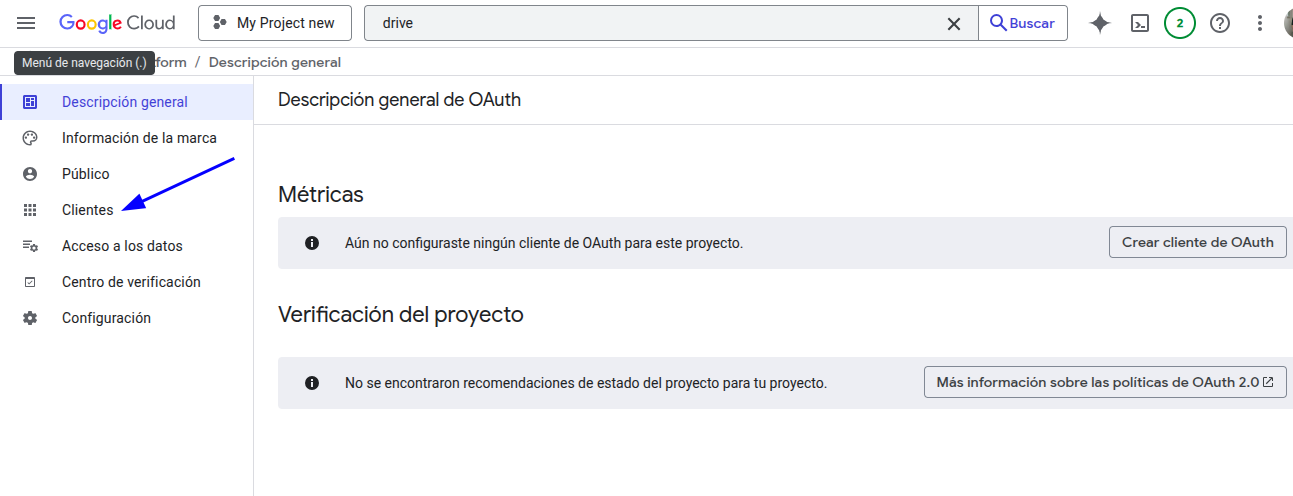
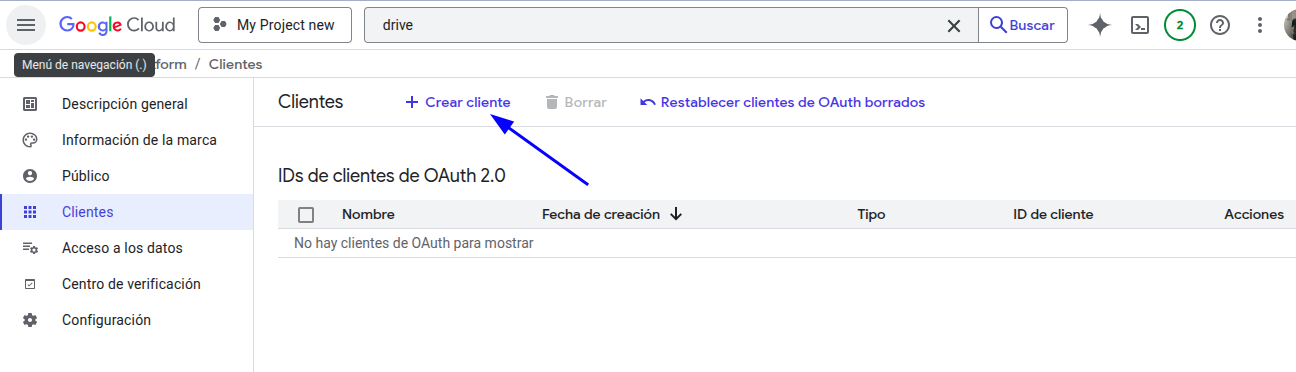
- Go to the Clients section.
- Go to Create client:
-
Create the OAuth client ID:
If Gredit is running as a web application, follow these instructions:
- Select Web application.
- Enter any name in Name.
- In Authorized redirect URIs, enter the URL of your Gredit application (for example,
https://test.greditsoft.com) followed by/drives/providers.
The resulting URL in this example would be https://test.greditsoft.com/drives/providers.
Click Create.
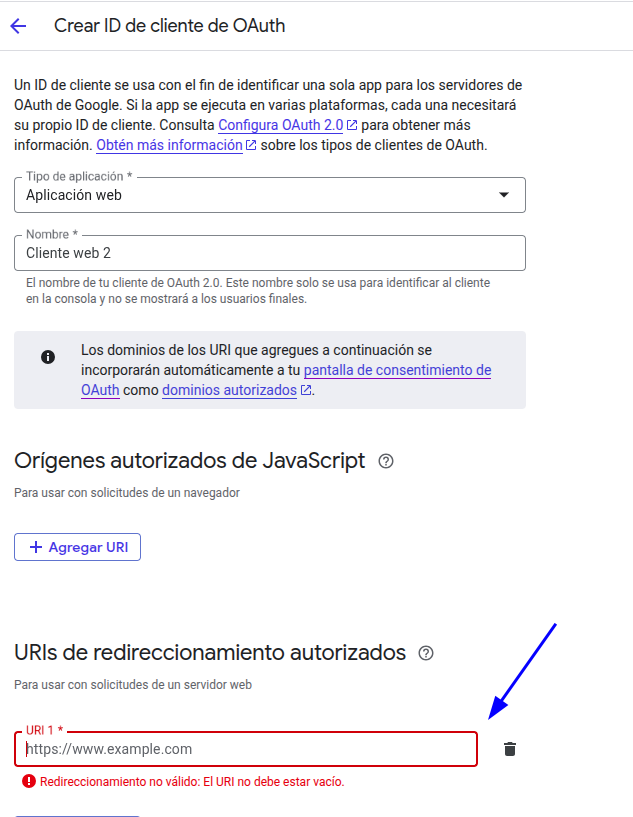
If Gredit is running on-premises, complete the following fields:
- Select Web application.
- Enter any name in Name.
Click Create.
-
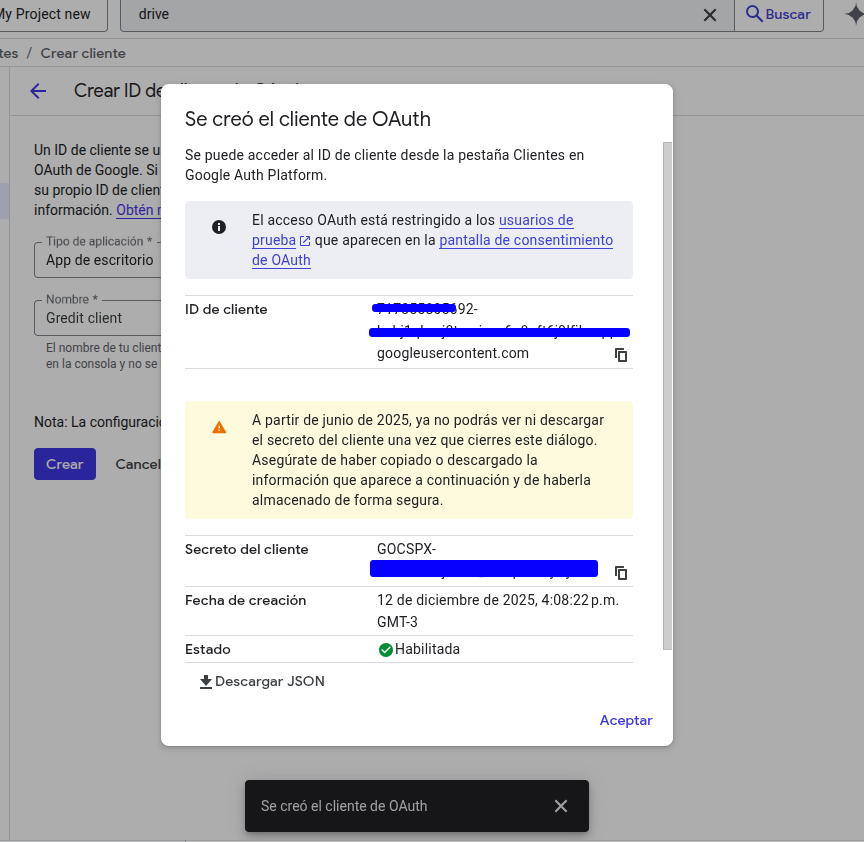
OAuth client information:
Store the Client ID and Client secret in a secure location. You can download them in JSON format.
Both values are required to connect the application to Gredit.
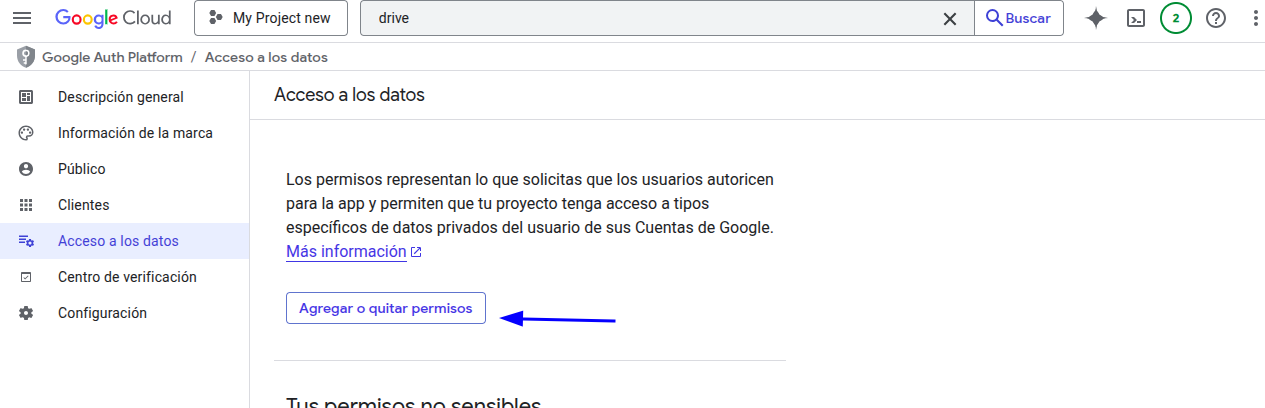
- Go to Data Access:
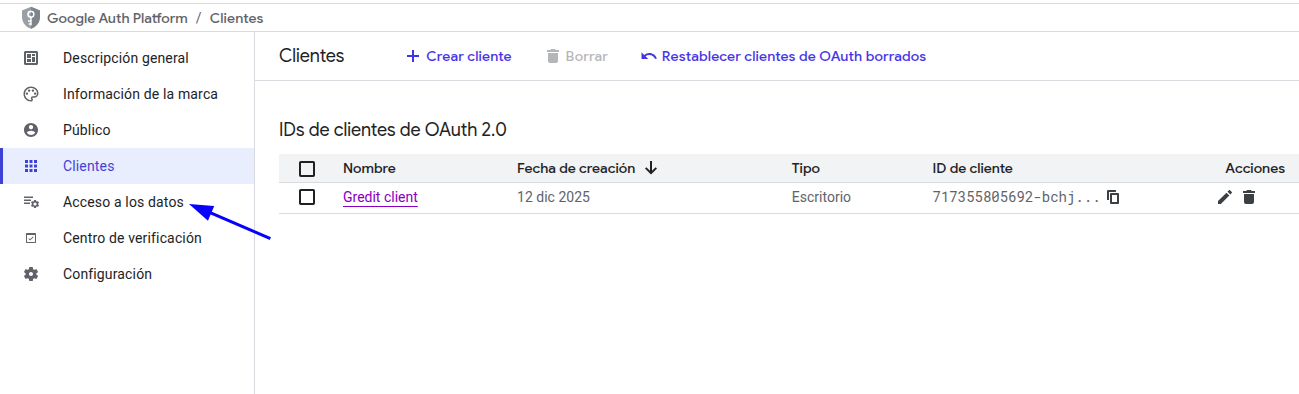
- Go to Add or remove scopes.
- Select the appropriate scopes:
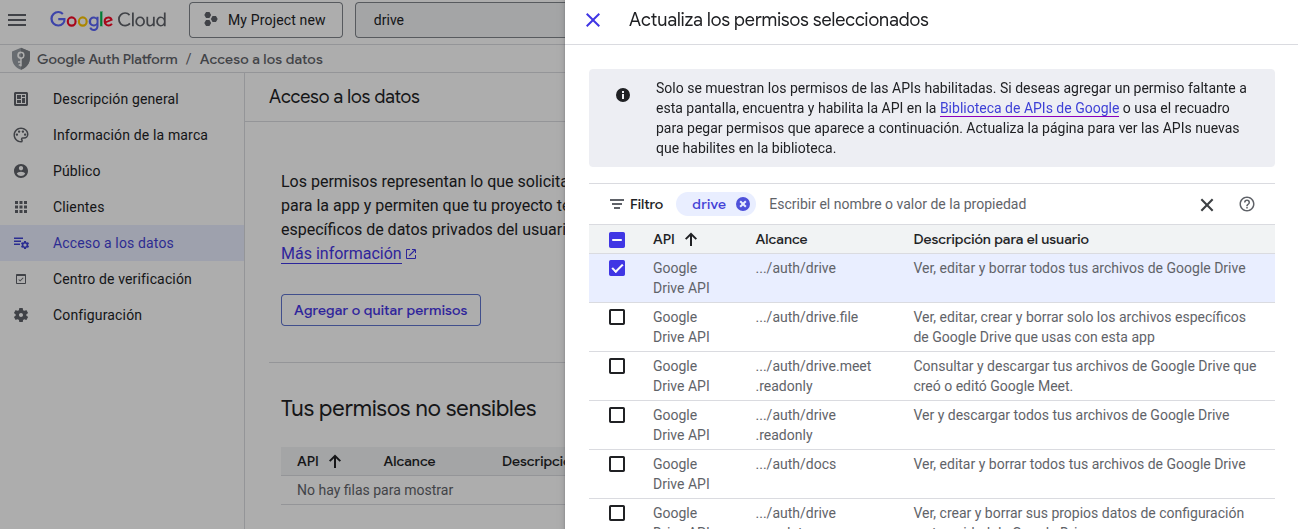
Click the Update button.
Configure Google Drive in Gredit
-
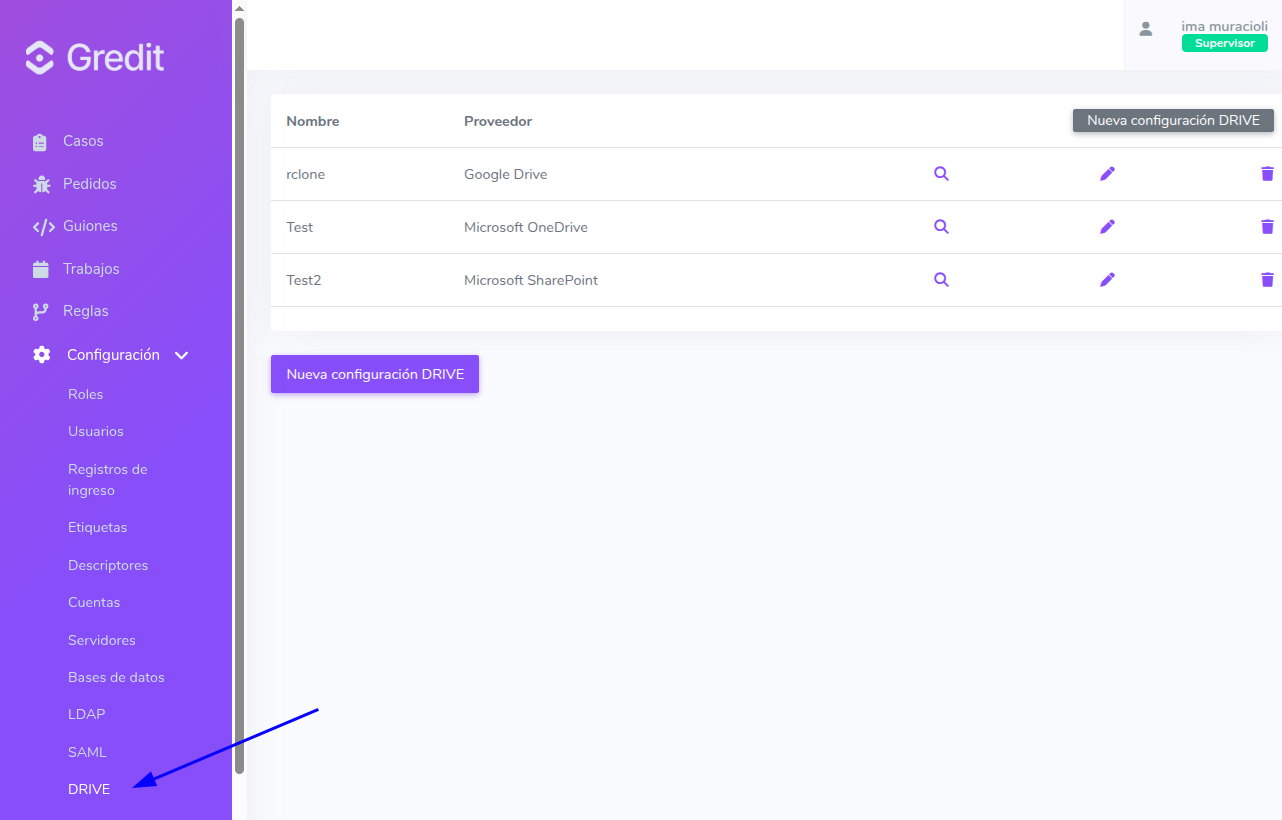
In Gredit, go to Drive -> New DRIVE Configuration.
In Gredit:
-
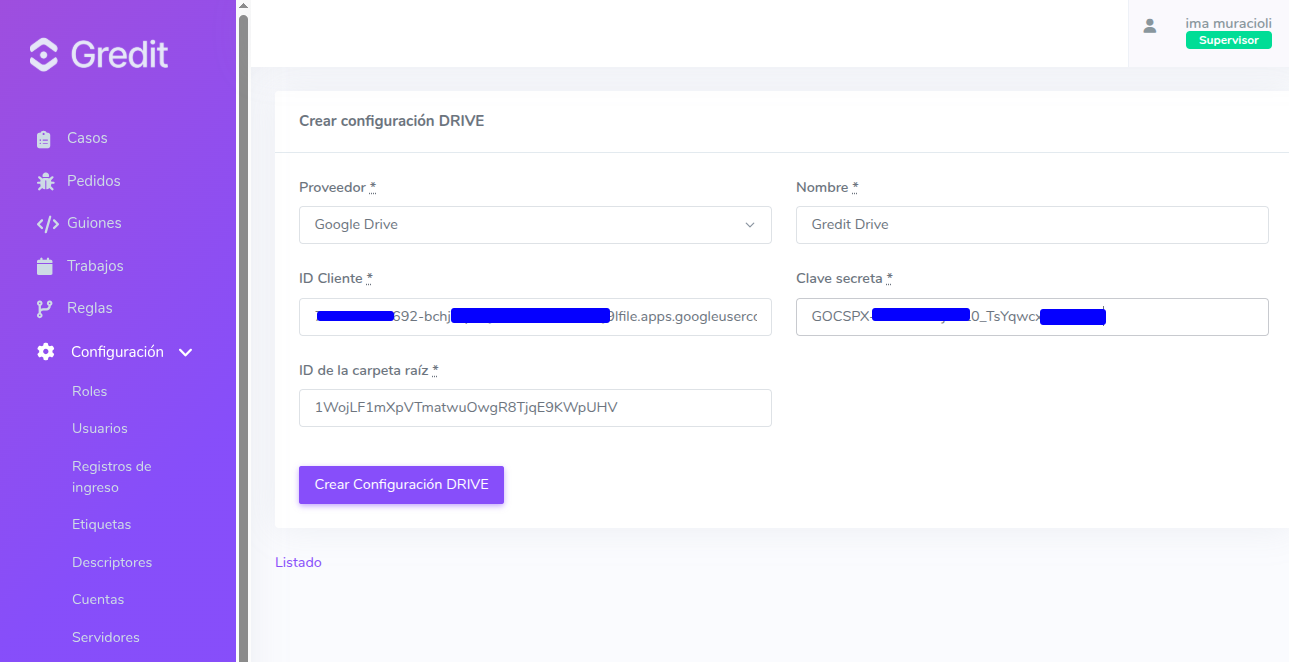
Enter the configuration details:
- Provider: Select Google Drive.
- Name: Enter an easily identifiable name. Example: “drive1”.
- Client ID: Enter the Client ID provided in step 17.
- Client secret: Enter the Client secret provided in step 17.
- Root folder ID: Enter the ID of the Drive root folder containing the data to be consumed.
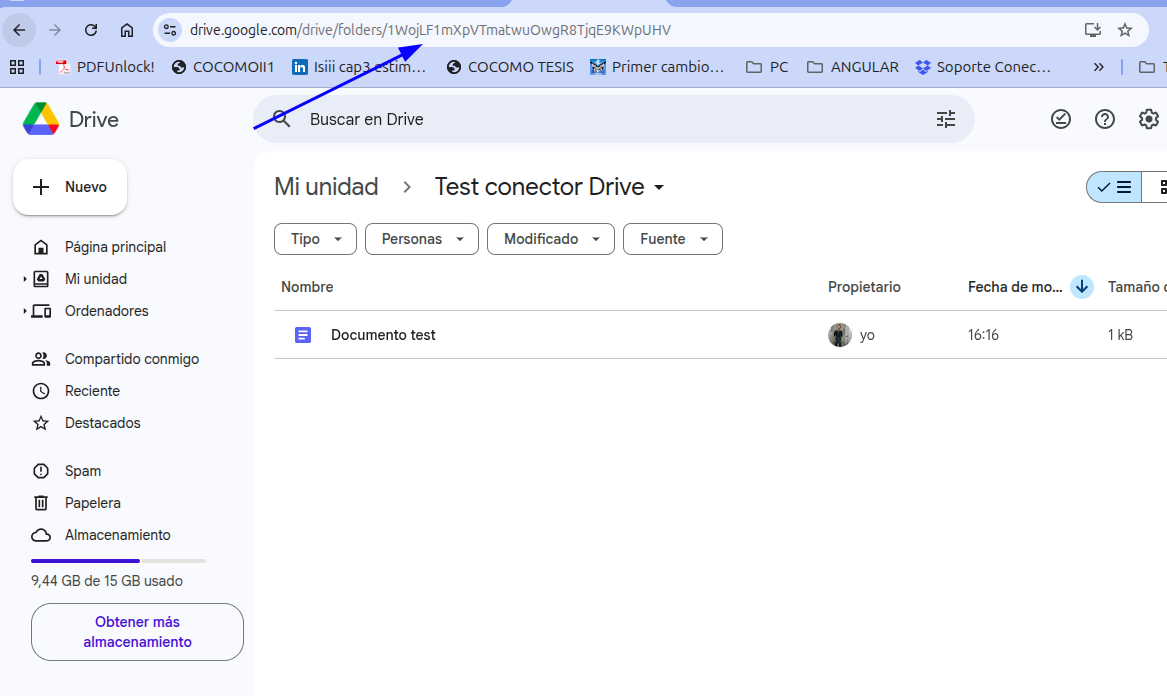
- You will be asked to select the account to use:
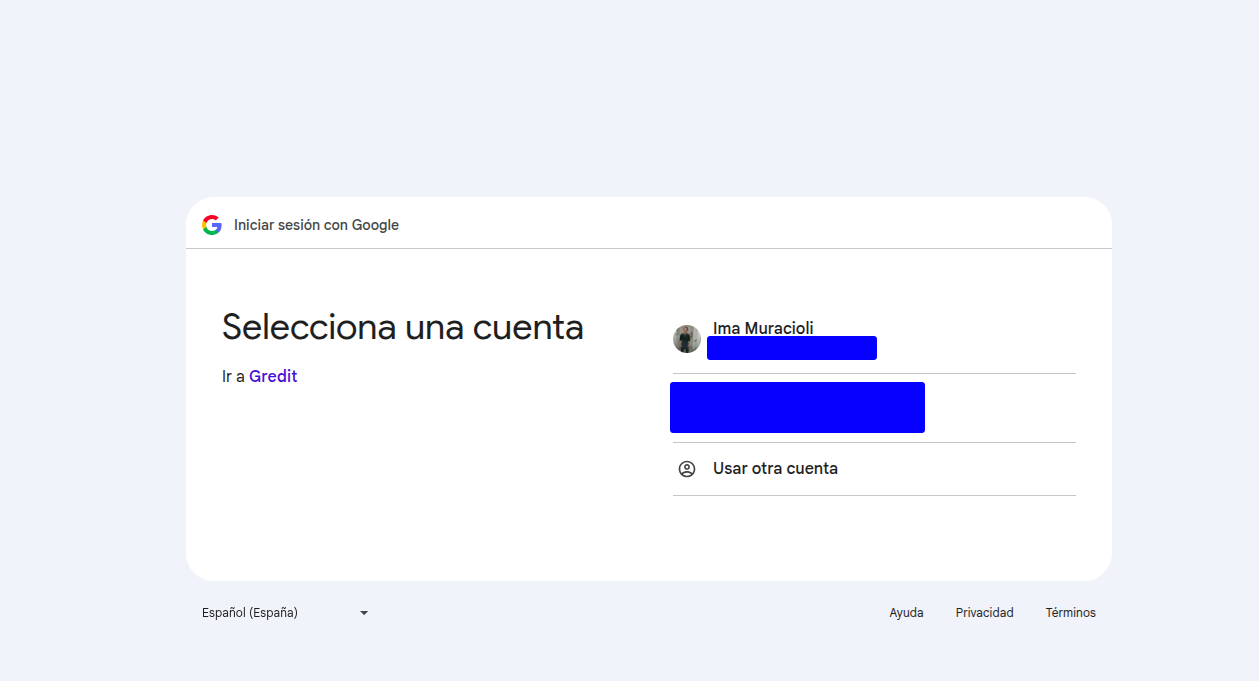
- Click Continue:
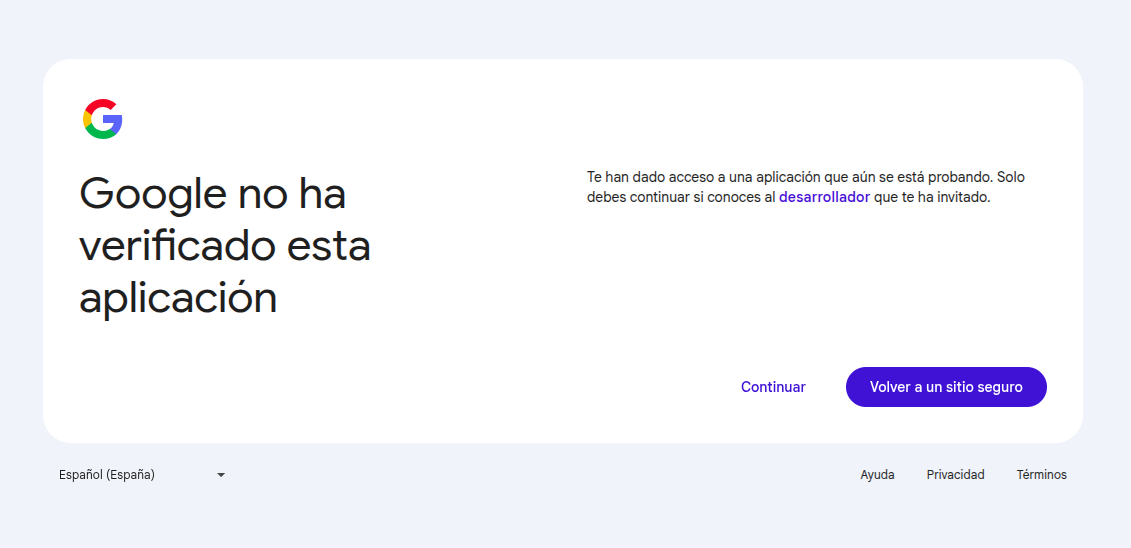
- Click Continue:
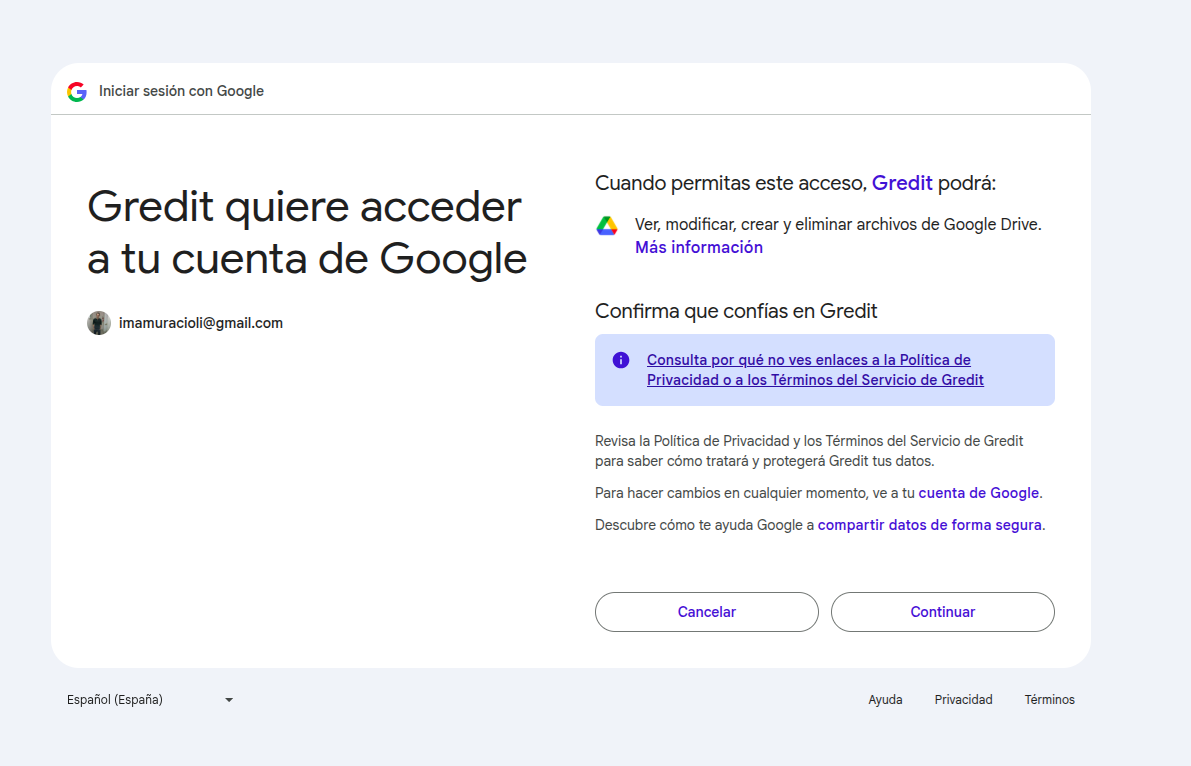
-
Redirection:
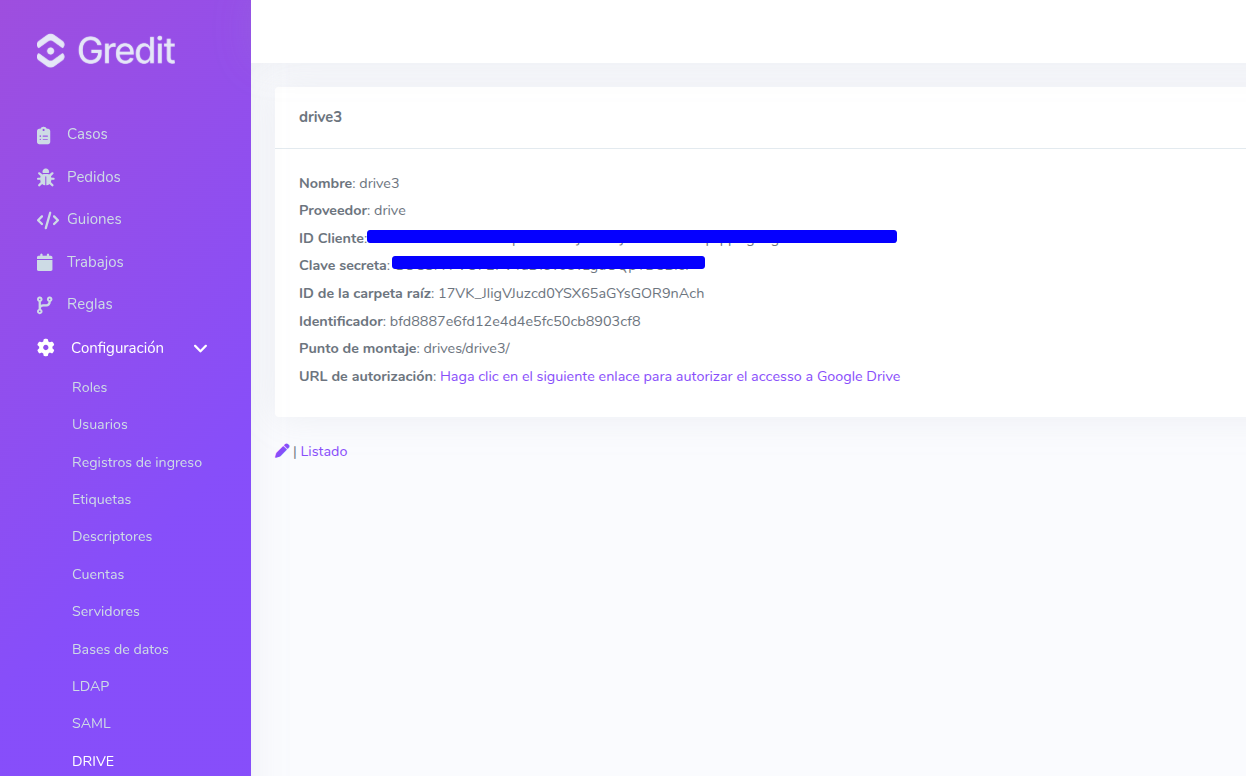
The successfully created configuration should then be displayed:
Using it in scripts
-
The drive should now be mounted at the path shown in Mount point in the Google Drive configuration in Gredit.
Directory listing example:
Ruby:
dir = Dir.glob("#{Rails.root}/drives/drive3/*")puts dir.inspectPython:
from pathlib import Pathproject_root = Path("/home/ima/Escritorio/Hullop/monitor")files = list((project_root / "drives" / "drive3").glob("*"))print(files)