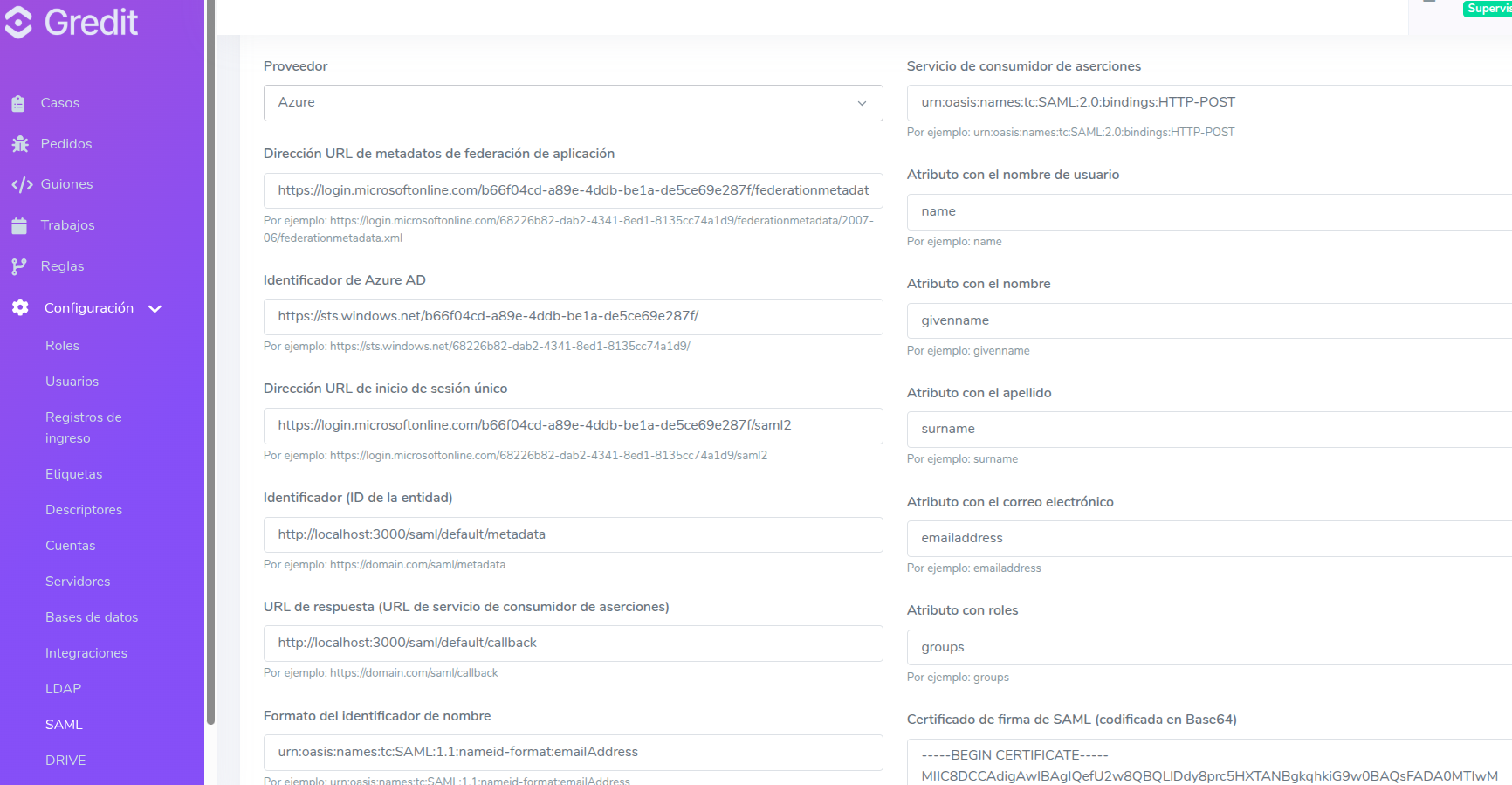
SSO login
SSO login allows users to access Gredit with their corporate account, without needing a tool-specific password, by authenticating against Microsoft Entra ID.
Step 1 — Microsoft Entra ID
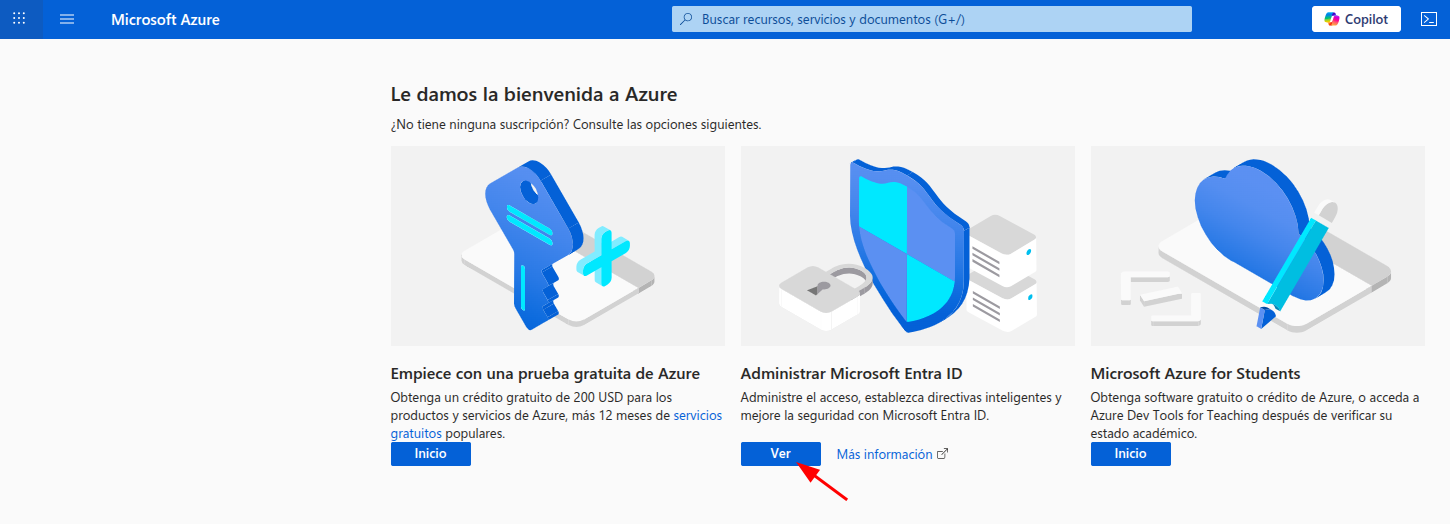
1. Go to Microsoft Entra ID
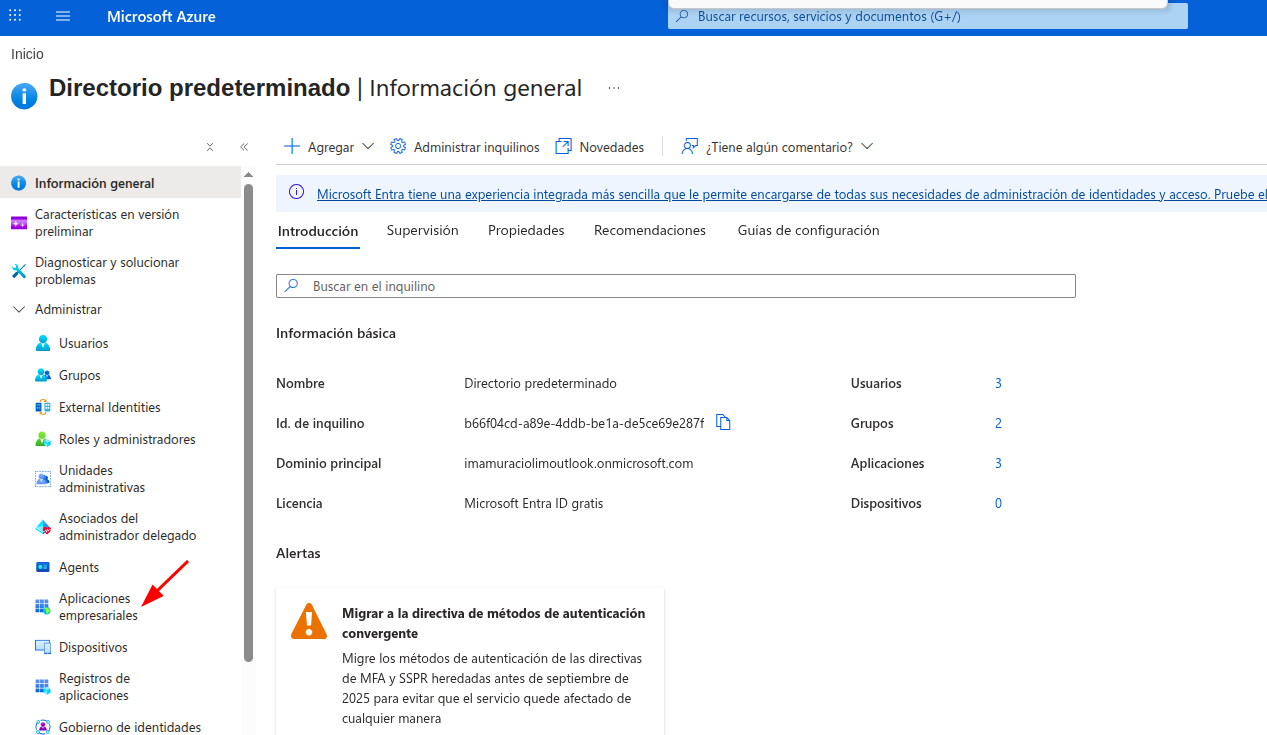
2. Enterprise applications
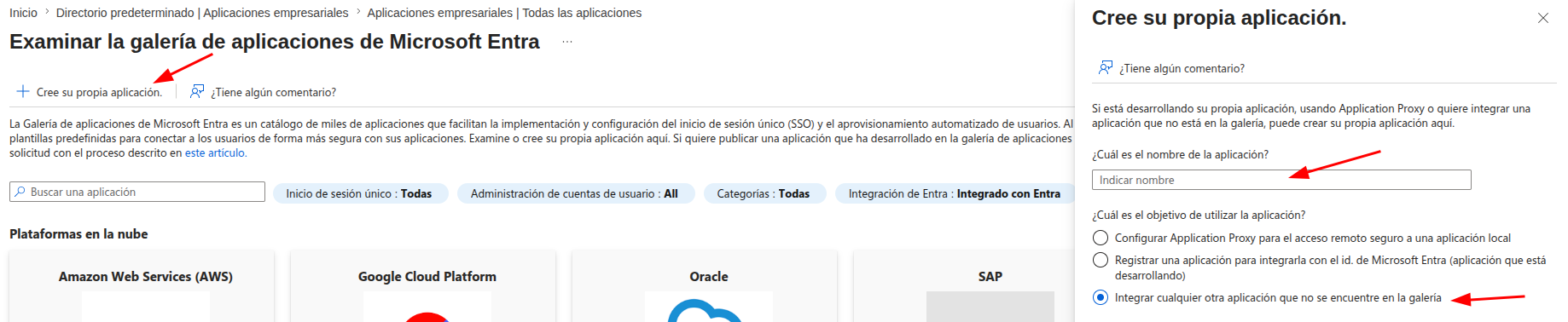
3. Create the application
- Click Create your own application.
- Enter any name you want.
- Select Integrate any other application you don't find in the gallery.
- Click Create.
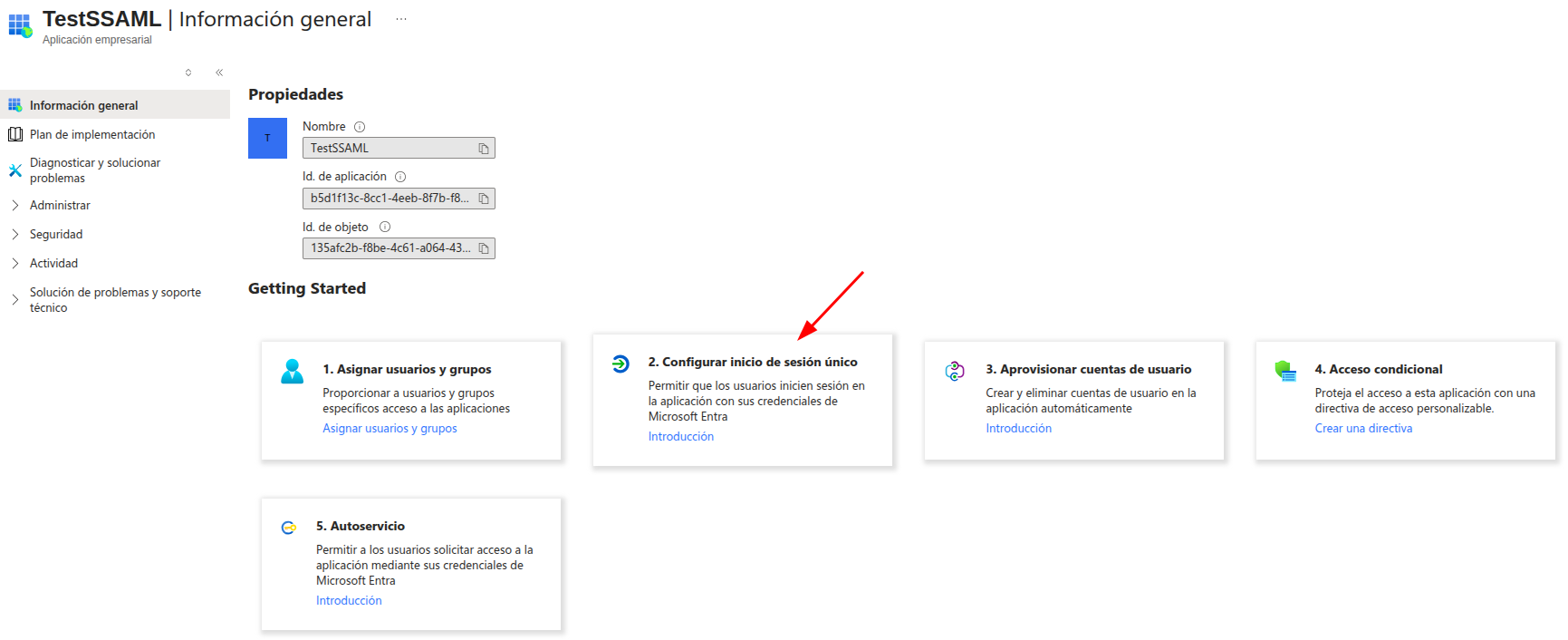
4. Configure single sign-on
Choose option 2. Set up single sign on.
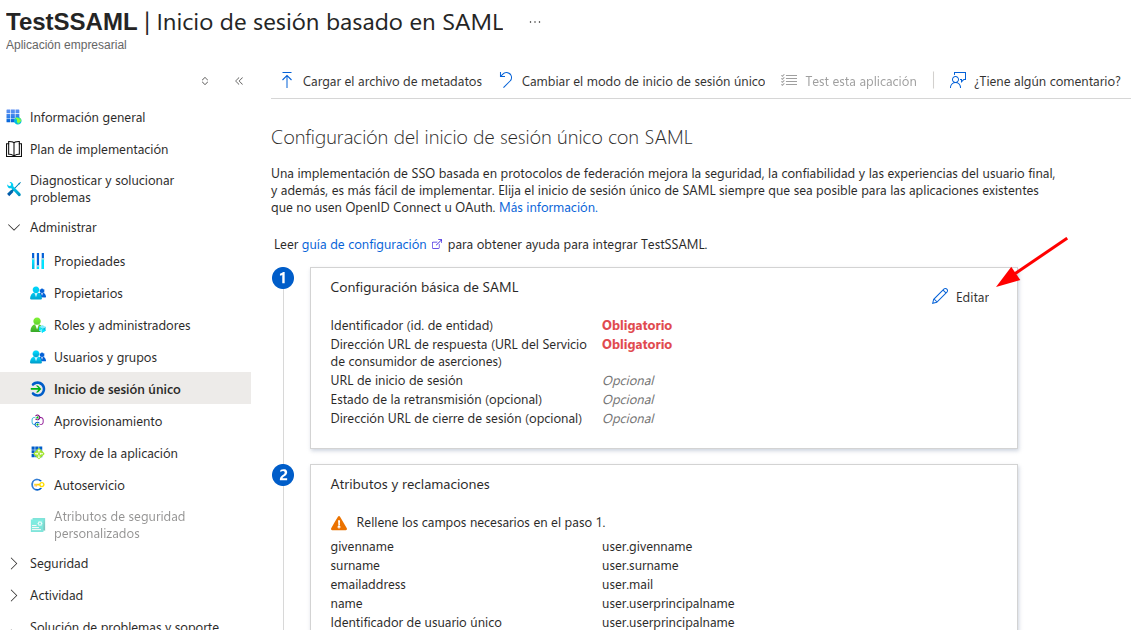
5. Choose SAML

6. Basic SAML configuration
In Basic SAML configuration, click Edit.
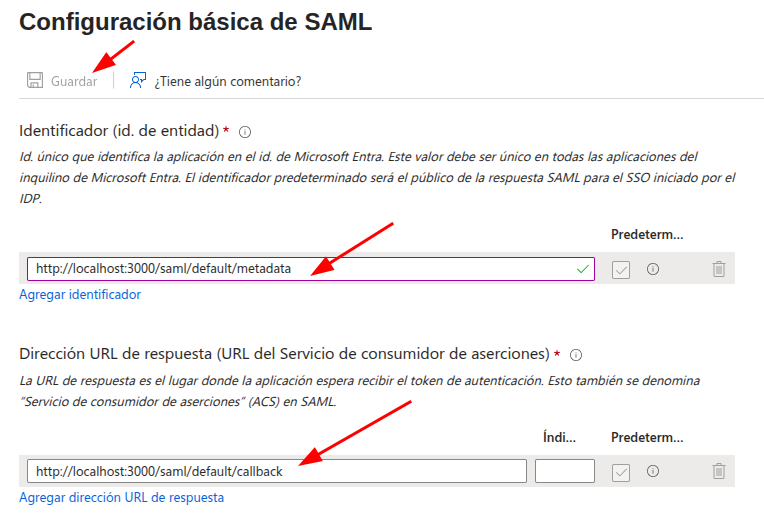
7. Fill in the identifier and reply URL
- In Identifier (Entity ID) enter the following value:
{your_gredit_domain}/saml/{gredit_account_tenant}/metadata - In Reply URL enter the following value:
{your_gredit_domain}/saml/{gredit_account_tenant}/callback - Save.
8. Attributes and claims
- In Attributes & Claims, click Edit.
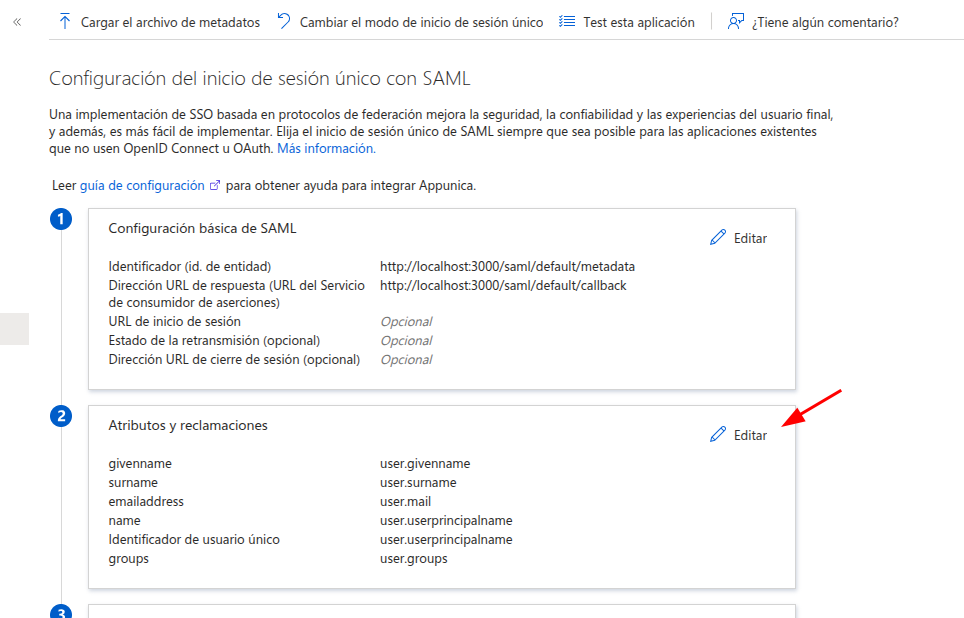
- Click Add a group claim.
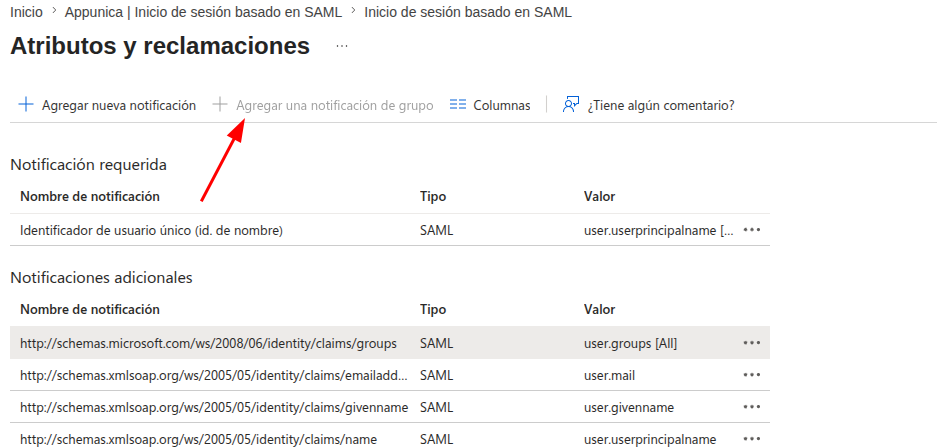
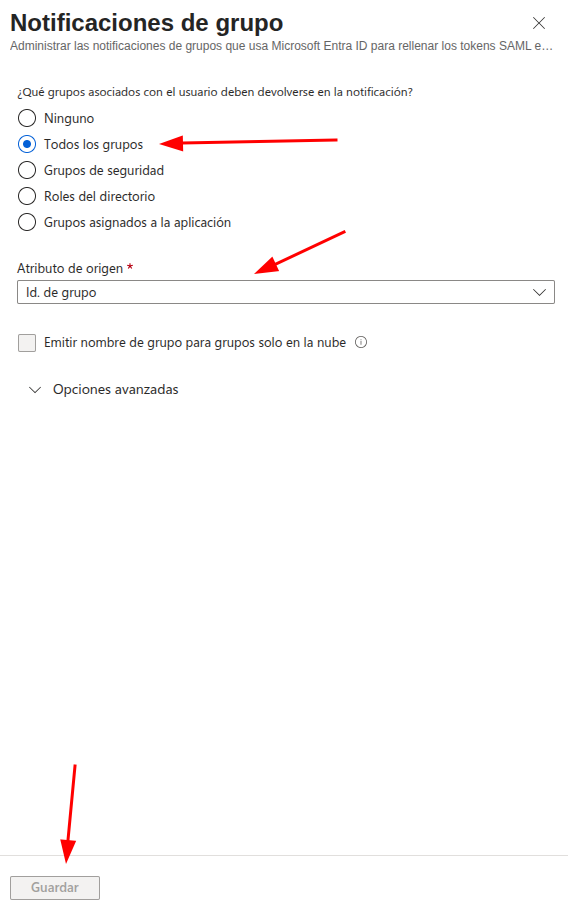
- Configure:
- Select All groups.
- In Source attribute, select Group ID from the dropdown.
- Save.
9. Save the certificate data
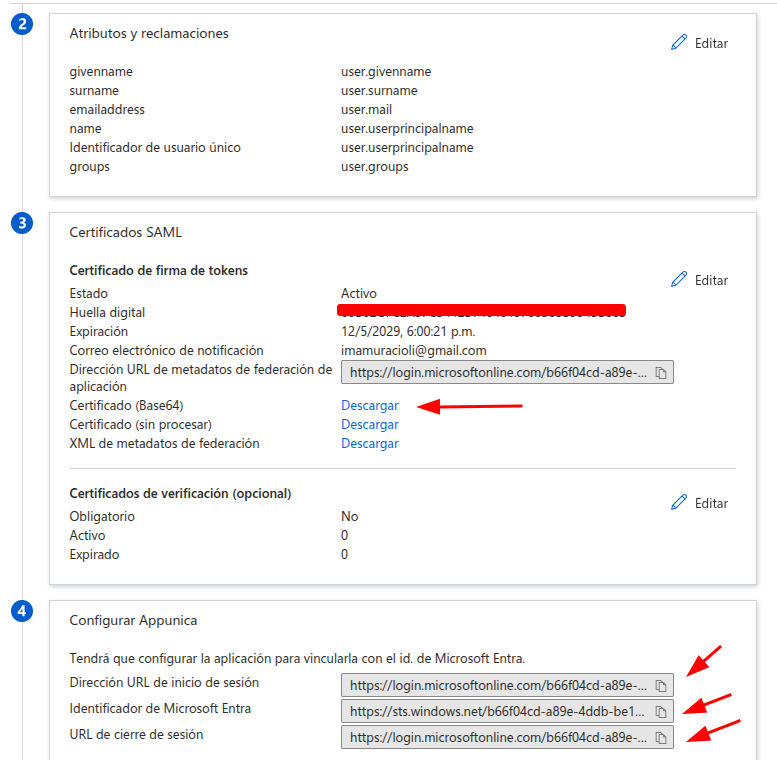
Save the following data, you will need it in Gredit:
- Certificate (Base64)
- Login URL
- Microsoft Entra Identifier
- Logout URL
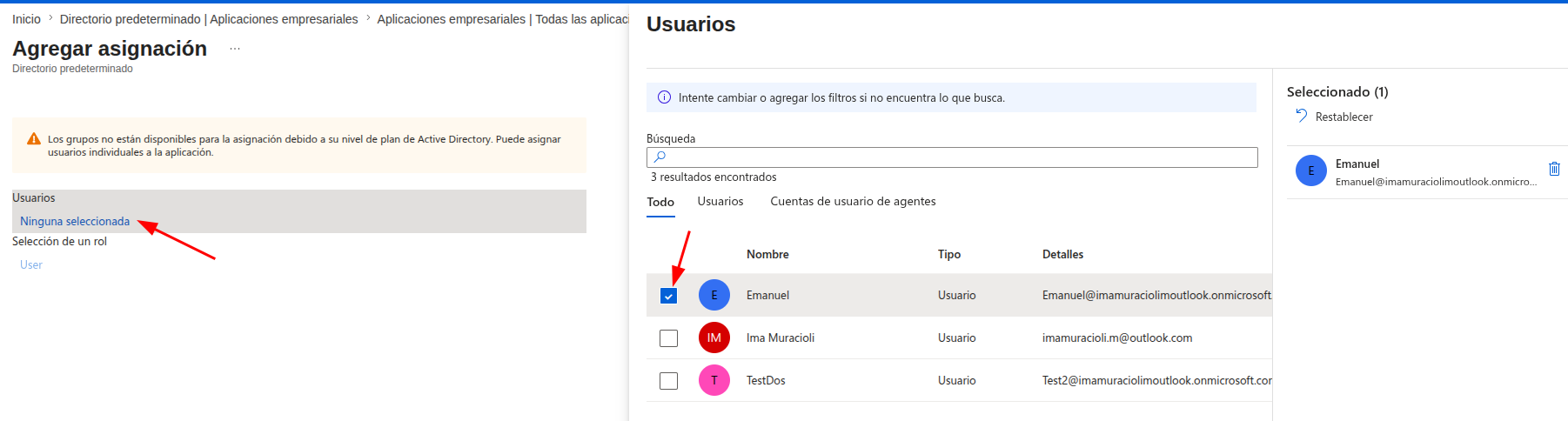
10. Add users to the application
- Go to Single sign-on → Add user/group.
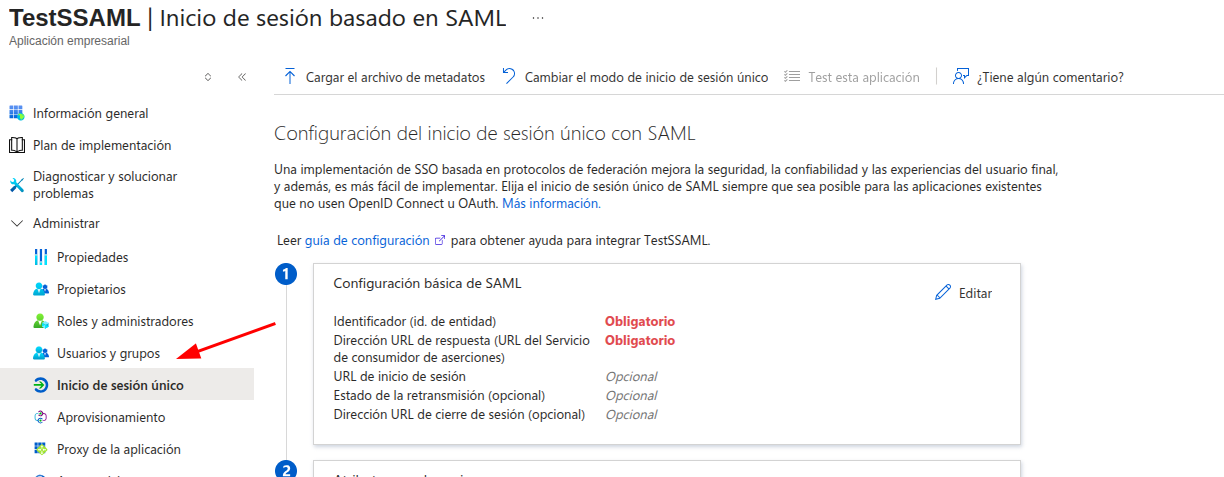
- Select the users who should have access.
Step 2 — Gredit
- Go to Configuration → SAML → New SAML configuration.
- In the SSO (sign-in) section, fill in the form with the data obtained in the previous step.
- Try logging in with your corporate SAML user. It should authenticate with Entra ID and log in automatically.